
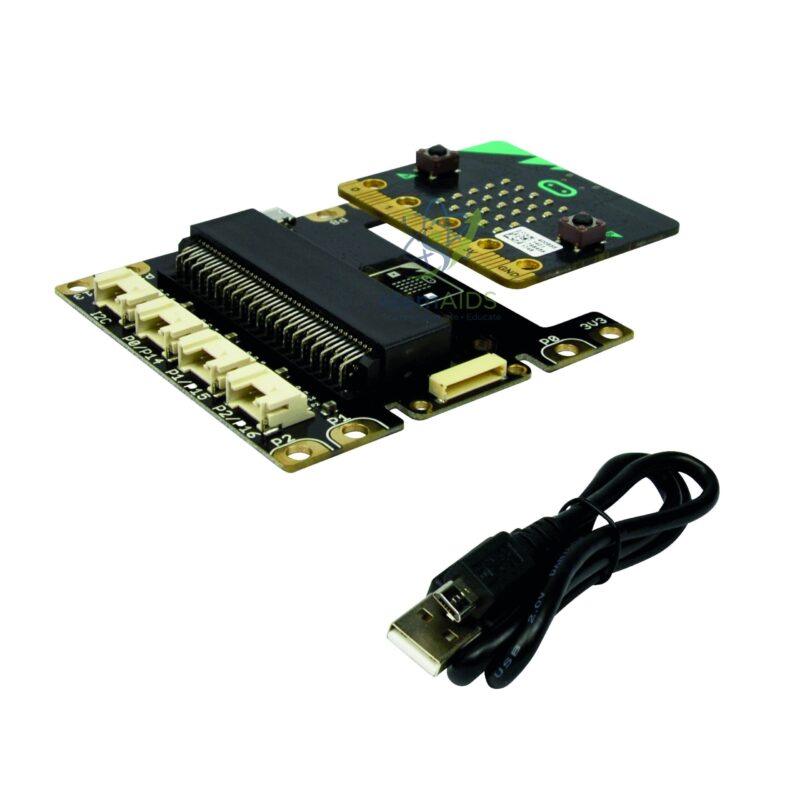
Quick Answer: The Micro:bit programming interface is an expansion board that the BBC micro:bit plugs into, bringing its pins out to connector sockets so sensors, displays, lights and motors can be attached without breadboard wiring. The kits in this range sold without an interface are meant to be used with a board of this kind.
What the Interface Board Does
The micro:bit’s gold edge connector carries all of its input and output pins, but only a few are reachable through the large rings used for crocodile clips; the narrow strips between them are too close together to wire by hand. An interface board has a slot that grips the edge connector and routes those pins, together with power and ground, to proper sockets, so modules can be connected and swapped in seconds.
Listings for this interface describe Grove-style 4-pin sockets, the plug system used by many classroom sensor and actuator modules, in which each socket carries power, ground and one or two signal lines. Knowing which socket is digital, analog or I2C matters: a light sensor needs an analog pin, a push button a digital one and a display the I2C bus. Matching the board’s socket labels to pin names in MakeCode is itself a lesson in how a microcontroller is organised.
With the interface in place, a class moves from the micro:bit’s built-in buttons and LEDs to external hardware without changing programming environment. Beginners use MakeCode blocks with the relevant extension, and the same projects can later be written in Python. Confirm the connector type, socket count and power options of this board before planning modules around it.
Specifications
| Item | Expansion interface board for the BBC micro:bit |
| Connection to micro:bit | Edge-connector slot |
| Module connection | 4-pin sockets, described as Grove-style in listings |
| Signals available | Digital, analog and I2C, depending on the socket |
| Programming | MakeCode blocks, JavaScript or Python |
| Socket count and power input | Confirm at enquiry |
Where It Is Used
- First sensor projects such as light, sound or temperature monitoring
- Controlling external LEDs, buzzers, displays and relays from code
- Reusing one board across the gate, Wi-Fi and smart-bulb kits that are sold without an interface
- Robotics and automation models where modules are changed quickly between lessons
Care & Handling
- Insert the micro:bit facing the way marked on the board; a reversed board will not connect correctly.
- Power off before plugging or unplugging modules.
- Keep the edge-connector slot free of dust and pull the micro:bit straight out rather than levering it sideways.
- Store boards in anti-static bags or trays between lessons.
Why Choose LabEquip
Schools usually buy this interface first when starting micro:bit electronics and then add project kits over time. LabEquip lists it in the STEM kits range together with kits such as the Micro:bit Wi-Fi kit that are sold without one. Ask about quantities per class on the contact page.
Frequently Asked Questions
Do I need an interface board to use a micro:bit?
Not for the built-in LED display, buttons and sensors. You need one when connecting several external modules, because the small edge-connector pins are hard to reach and the interface brings them out to sockets.
What is a Grove connector?
It is a 4-pin plug system used on many classroom modules, carrying power, ground and two signal lines in one keyed plug. It only fits one way round, which prevents wiring mistakes.
Which socket should a sensor go in?
Match the module to the socket type: analog sensors to an analog-capable socket, buttons and LEDs to digital ones, and displays to the I2C socket. Then use the same pin name in your code.
Does the interface work with micro:bit V1 and V2?
Interface boards use the edge connector shared by both versions, so both boards normally fit. Check the board documentation for any notes specific to one version.
Can the micro:bit be powered through the interface?
Many interface boards have their own battery or USB input that powers the micro:bit and the modules together. Whether this board has one should be confirmed, especially for projects with motors or servos.
Why does a module not respond after plugging it in?
Common causes are a module in the wrong type of socket, a pin number in the code that does not match the socket, or a missing MakeCode extension. Check those three things before suspecting a fault.
Last Updated: September 2026





Reviews
There are no reviews yet.