












In Stock
Ino-bot Robot
$27.64
Quick Answer: The InO-Bot robot (listed as Ino-bot) is a two-wheeled classroom robot with a transparent shell and on-board sensors, designed to be programmed with Scratch-style block code from a tablet or computer. The InO-Bot robot suits pupils who have outgrown button-programmed robots and are ready for loops, conditions and sensor input.
A Step Beyond Button Robots
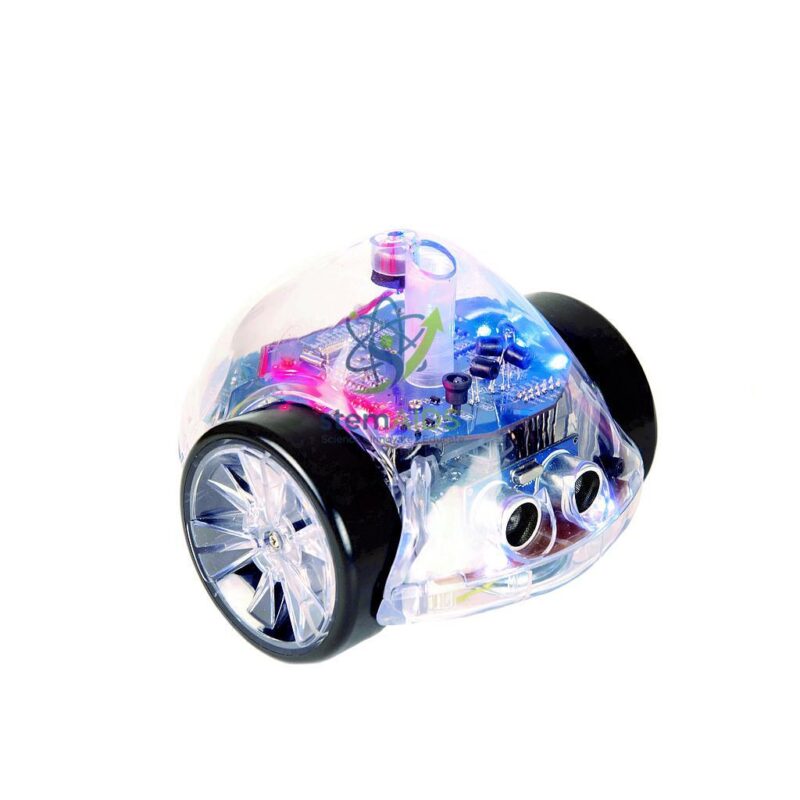
Floor robots such as Bee-Bot follow a fixed list of moves. InO-Bot is aimed at the next stage, where a program reacts to the world around it. The listing photo shows a clear dome over the electronics, two large drive wheels and a pair of round sensors at the front of the kind used to measure distance, so a program can tell the robot to stop or turn when something is in its way.
InO-Bot is generally programmed with drag-and-drop blocks based on Scratch, the language many schools already use for on-screen projects, which makes the move from animating a sprite to driving a real robot a short one. Typical tasks combine a loop with an if-then decision: drive forward until an obstacle is close, then turn and try another direction. The photo also shows an upright port in the centre of the shell of the type used to hold a pen for drawing tasks. Which sensors, lights and app platforms the supplied unit supports should be confirmed before planning a scheme of work.
Schools often keep Bee-Bot or the Blue-Bot with programming bar for younger classes and add InO-Bot for older pupils, so that progression runs from keys to tiles to block code.
Specifications
| Type | Programmable two-wheeled robot with transparent shell (as pictured) |
| Programming style | Block-based code in the Scratch style, from a tablet or computer |
| Sensing | Front sensor pair visible in the photo |
| Drawing | Central upright port of the pen-holder type visible in the photo |
| Full sensor list, supported devices and charging | Confirm at enquiry |
Where InO-Bot Fits
- Upper primary and lower secondary computing lessons on loops, conditions and variables
- Obstacle-avoidance and maze challenges that need the robot to sense rather than count steps
- Drawing shapes and patterns with a pen, linking code to angles in mathematics
- Robotics clubs where teams debug a program against a physical course
Care & Handling
- Test programs on the floor, or on a table with a spotter, so the robot cannot drive off an edge.
- Keep the sensor faces clean and unscratched; a smeared sensor gives false readings that look like program bugs.
- Remove and cap any pen after drawing tasks so ink does not dry in the holder.
- Charge fully before lessons and store the robot switched off.
Why Choose LabEquip
InO-Bot is usually bought by schools building a coding progression that continues after the early-years robots, and by clubs that want sensor-based challenges without soldering or wiring. It sits in the LabEquip General Lab Products range; use the contact page to check app support for the tablets or computers your school already owns.
Frequently Asked Questions
How is InO-Bot different from Bee-Bot?
Bee-Bot follows a list of key presses and has no sensors. InO-Bot is coded with blocks on a device and can react to its surroundings, so programs can include decisions such as stopping at an obstacle. It suits older pupils.
What programming language does InO-Bot use?
It is designed for block-based coding in the style of Scratch, where commands are dragged together on screen. Pupils who have used Scratch for on-screen projects usually recognise the blocks straight away.
Which devices can program InO-Bot?
It is controlled from a tablet or computer running the robot’s app over a wireless link. Supported operating systems change with app updates, so check compatibility with the devices your school uses before ordering.
Can InO-Bot draw?
The photo shows a central upright port of the pen-holder type, and drawing shapes with a pen is a common task for robots of this design. Pupils program side lengths and turn angles, then compare the drawing with the shape they intended.
Why does my obstacle program behave differently each time?
Sensor readings vary with surface colour, lighting and the angle of the object. Test with a large flat obstacle first, keep the sensor clean, and build in a margin, for example turning when an object is closer than a set distance rather than at one exact reading.
Is InO-Bot suitable for a first coding lesson?
It can be, for pupils who already read and use a touchscreen or mouse confidently. For very young children, a key-programmed robot is a gentler start because it needs no device or reading.
Last Updated: September 2026
You must be logged in to post a review.
Bestsellers



Reviews
There are no reviews yet.