













In Stock
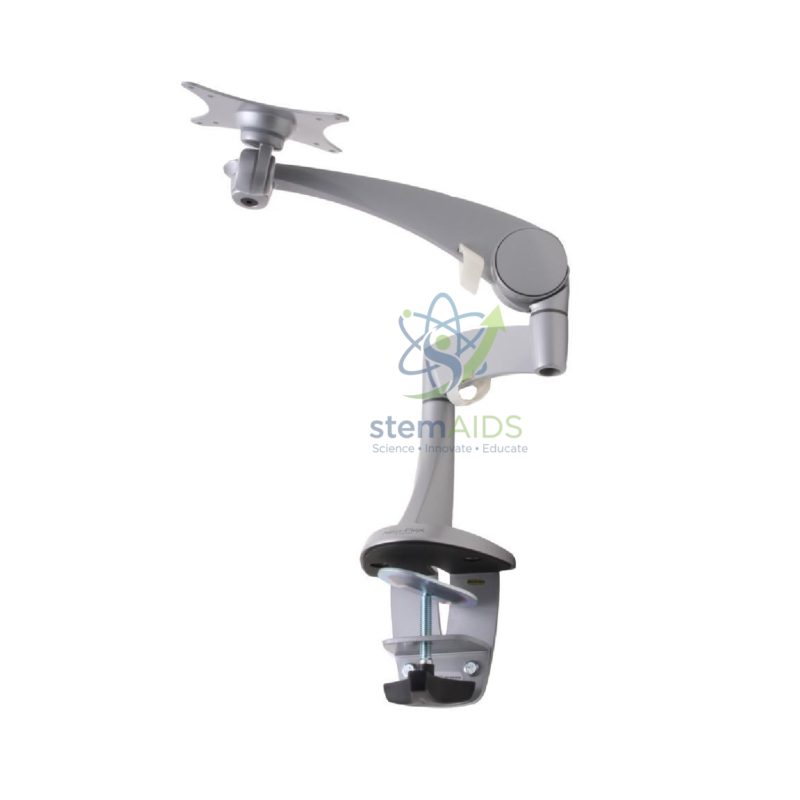
Articulated arm for flat screen
₹3,260.00
Quick Answer: The articulated arm for flat screen is a jointed, desk-mounted arm that holds a flat-panel monitor or display off the work surface. Its pivoting joints let the screen be pulled forward, pushed back, swung sideways or tilted, which frees bench space and lets one screen be shared in computer rooms and STEM labs.
What an Articulated Screen Arm Changes in a Lab
A monitor on its own stand occupies a block of desk directly in front of the user. On an articulated arm, the only thing on the desk is the mounting point, so a STEM or electronics bench keeps room for breadboards, robots and notebooks. When a task needs the whole bench, the screen swings back out of the way instead of being lifted off.
The joints also let one screen serve more than one person. A teacher can turn a display to face a small group for a demonstration, and two students sharing a workstation can swing it between them. Where a screen shows data from a sensor or a microscope camera, an arm lets the display sit beside the apparatus rather than across the room.
Arms are normally fixed with a desk clamp or through a cable hole, and the screen attaches to a plate that matches the threaded holes on the back of the monitor. The listing title does not give the mounting method, the screen sizes and weights supported or whether it holds one screen or two, so these need confirming before ordering.
Where It Is Used
- Computer and coding labs where desk space is needed for kits and keyboards
- Data-logging stations that show sensor readings next to the apparatus
- Microscope-camera or document-camera stations where a group views one display
- Teacher desks where the screen is turned to face the class
Specifications
| Item | Articulated (jointed) arm for a flat-panel screen |
| Movements | Swing, extend, retract and tilt, as typical of articulated arms |
| Screen fixing | Rear plate for the monitor mounting holes |
| Desk fixing | Usually a clamp or through-desk bolt |
| Typical settings | Computer rooms, STEM labs, electronics benches and staff desks |
| Supported screen size, weight and mounting type | Confirm at enquiry |
Fitting and Care
- Check the screen weight against the arm’s rated load before fitting; an overloaded arm drifts downward.
- Tighten the desk clamp fully and re-check it each term, since repeated movement loosens fixings.
- Route cables along the arm with the clips or ties provided so they do not snag when the screen swings.
- Adjust joint tension with the correct tool rather than forcing the arm.
Why Choose LabEquip
Schools usually order screen arms when fitting out or reorganising a computer or STEM room. LabEquip lists this arm in its STEM kits range together with the ergonomic flat-screen arm for workstations where posture adjustment matters most. Share your screen models and desk thickness through the contact page so the fixing can be checked.
Frequently Asked Questions
Will the arm fit my monitor?
Most flat screens have threaded holes on the back for a mounting plate, but hole spacing, screen weight and size all have to suit the arm. Compare these with the arm’s documentation before ordering, and remove the screen’s own stand before fitting.
How is the arm fixed to the desk?
Articulated arms are commonly attached with a C-clamp over the desk edge or with a bolt through a cable hole. A clamp needs a sturdy desk edge of suitable thickness, while a through-desk fixing needs a hole in the right place.
Can a student adjust the screen safely?
Yes, once the arm is fitted and its tension set for the screen’s weight. The screen should move smoothly and stay where it is left. If it sinks or springs up, a teacher or technician should adjust the tension rather than students.
Does using an arm free up much desk space?
It removes the monitor’s stand from the desk, leaving only the clamp or bolt. On narrow lab benches this makes room for kits, notebooks and apparatus in front of the user, and the screen can be pushed back when not in use.
Can the screen be rotated to portrait?
Many articulated arms allow the mounting plate to rotate, which suits reading long documents or code. Whether this arm rotates, and how far, is worth checking, along with the monitor’s own ability to rotate its display.
How should cables be managed on a screen arm?
Leave enough slack at each joint for the full range of movement, then fix cables along the arm. Tight cables pull on the monitor’s sockets when it swings, while loose loops can catch on equipment on the bench.
Last Updated: September 2026
You must be logged in to post a review.
Bestsellers

Sale

Sale

Sale


Reviews
There are no reviews yet.