
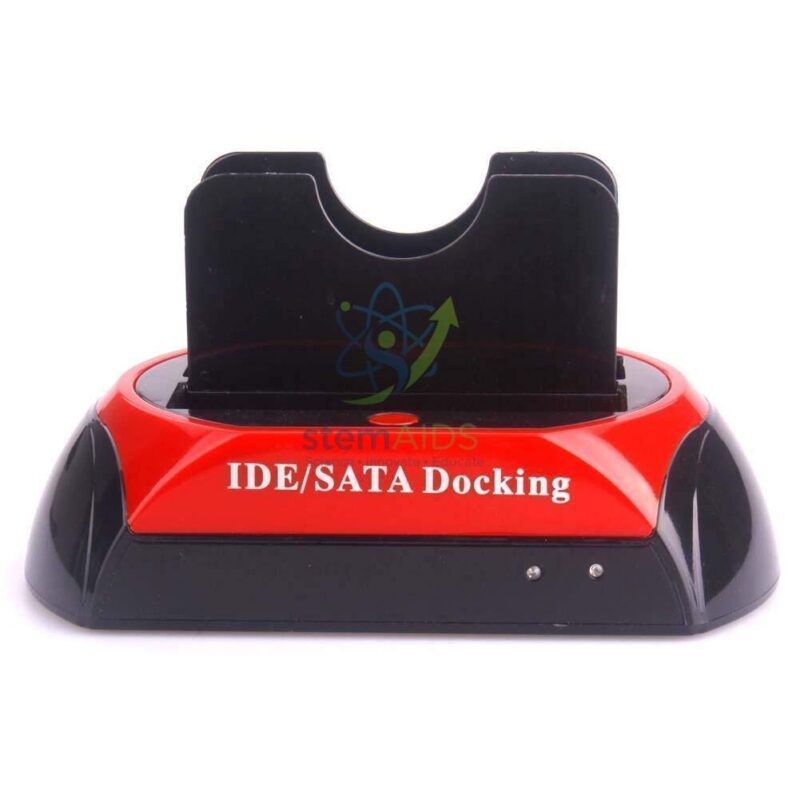
The StemAids Hard Drive Docking Station is a practical data access and storage management device designed for connecting internal hard drives and solid-state drives to a computer without installing them inside a CPU cabinet or laptop. It is suitable for schools, ICT labs, computer hardware labs, STEM labs, offices, data recovery workstations, IT departments, training centers, and technical workshops.
This docking station allows users to connect compatible SATA HDDs and SSDs through a USB interface for file transfer, backup, cloning, data recovery, drive testing, and storage expansion. It is especially useful for computer maintenance, hardware practicals, IT troubleshooting, and digital data management.
Product Overview
The StemAids Hard Drive Docking Station is designed to make hard drive access simple and convenient. Instead of opening a computer cabinet to connect a drive internally, users can place a compatible hard disk or SSD into the docking slot and access it directly through a connected laptop or desktop computer.
It is useful for reading old drives, transferring large files, backing up important documents, testing spare drives, recovering data, and managing multiple storage devices. Depending on the model variant, it may support 2.5-inch and 3.5-inch SATA HDD/SSD drives, USB 3.0 connectivity, offline cloning, LED indicators, and external power support.
Key Features
- Easy Hard Drive Access: Connects compatible internal HDDs and SSDs externally through USB.
- Supports 2.5-inch and 3.5-inch Drives: Suitable for laptop and desktop SATA storage drives depending on model.
- Useful for Backup and Recovery: Helps transfer, copy, and recover data from storage drives.
- USB Connectivity: Connects easily to laptops and desktops through a compatible USB interface.
- Tool-Free Operation: Allows quick drive insertion and removal without opening a computer cabinet.
- LED Status Indicators: Shows power, drive activity, or cloning status depending on model variant.
- Optional Offline Cloning: Some variants may support disk-to-disk cloning without a computer.
- Ideal for IT Labs: Suitable for computer hardware training, data management, and technical troubleshooting.
Product Specifications
| Product Name | Hard Drive Docking Station |
|---|---|
| Brand | StemAids |
| Product Type | External HDD / SSD Docking Station |
| Drive Compatibility | Compatible 2.5-inch and 3.5-inch SATA HDD/SSD drives, depending on model variant |
| Interface | USB 2.0, USB 3.0, USB 3.1, or USB-C depending on selected model |
| Drive Slot | Single-bay or dual-bay docking slot depending on model |
| Supported Function | Data transfer, backup, drive reading, formatting, testing, and cloning depending on model |
| Power Supply | External power adapter support, especially for 3.5-inch drives |
| Indicator | Power and activity LED indicator depending on model design |
| Operating System Support | Windows, macOS, Linux, and other systems with external USB storage support |
| Application Area | Computer labs, ICT labs, IT departments, offices, data backup rooms, and technical workshops |
| Recommended Users | Students, teachers, IT technicians, computer lab assistants, office users, and institutional buyers |
How to Use the StemAids Hard Drive Docking Station
- Check Drive Compatibility: Confirm that the hard drive or SSD is compatible with the docking station interface and size.
- Connect Power: Attach the supplied power adapter if required, especially when using 3.5-inch hard drives.
- Insert the Drive: Carefully place the SATA HDD or SSD into the docking slot in the correct direction.
- Connect to Computer: Use the USB cable to connect the docking station to a laptop or desktop computer.
- Switch On the Dock: Turn on the power button if available and wait for the computer to detect the drive.
- Access Files: Open the drive from the file manager to copy, transfer, delete, format, or back up data.
- Use Cloning Function: If the model supports offline cloning, insert source and target drives correctly and follow the cloning button instructions.
- Safely Eject: Always use the eject or safely remove option before disconnecting the drive or docking station.
Educational and Technical Benefits
The StemAids Hard Drive Docking Station is useful for teaching computer hardware, storage technology, data backup, drive formatting, disk cloning, and troubleshooting. It helps students and technicians understand how internal storage devices can be accessed externally.
- Supports practical computer hardware training
- Useful for data recovery and storage troubleshooting
- Helps transfer files from old hard drives
- Supports backup of school, office, and lab data
- Useful for testing HDDs and SSDs before installation
- Helps IT teams manage multiple drives efficiently
Applications
- Computer hardware laboratories
- ICT and STEM labs
- Office data backup
- Hard drive testing and formatting
- Data recovery support
- Disk cloning and migration
- IT department troubleshooting
- Training center practical sessions
- Old drive file transfer
- External storage expansion
Why Choose StemAids Hard Drive Docking Station?
StemAids provides practical educational technology and computer accessories for schools, ICT labs, STEM labs, offices, and technical institutions. The StemAids Hard Drive Docking Station is designed to support easy storage access, data transfer, backup, and computer hardware learning.
It is a suitable choice for institutions, IT teams, and training centers that require a reliable method to connect internal hard drives externally. Its convenient docking design helps save time during maintenance, data recovery, file transfer, and technical demonstrations.
Safety and Maintenance Guidelines
- Use only compatible SATA HDDs and SSDs as per model specification.
- Do not insert or remove drives while data transfer is active.
- Always safely eject the drive before removing it from the dock.
- Use the correct power adapter supplied with the docking station.
- Keep the docking station away from water, dust, excessive heat, and physical impact.
- Handle hard drives carefully to avoid data loss or mechanical damage.
- Do not move the docking station while a hard drive is running.
- Back up important data before formatting, cloning, or testing drives.
Google E-E-A-T Focus
This product content is prepared for school procurement teams, ICT lab coordinators, IT administrators, computer hardware trainers, office managers, and institutional buyers. It focuses on practical usage, device compatibility, safe handling, data protection, technical learning, and long-term usability to support Google E-E-A-T principles of experience, expertise, authoritativeness, and trustworthiness.
Frequently Asked Questions
1. What is the StemAids Hard Drive Docking Station used for?
It is used to connect compatible internal hard drives and SSDs externally to a laptop or desktop computer for data transfer, backup, recovery, testing, and cloning.
2. Is it suitable for computer labs?
Yes, it is suitable for computer labs, ICT labs, STEM labs, hardware training centers, IT departments, offices, and technical workshops.
3. Can it support both HDD and SSD?
Yes, most docking station variants support compatible SATA HDDs and SSDs. Compatibility should be checked with the selected model.
4. Can it support 2.5-inch and 3.5-inch drives?
Many docking stations support both 2.5-inch laptop drives and 3.5-inch desktop drives, but this depends on the model variant.
5. Does it require software installation?
For normal file access, most operating systems detect the dock as external storage. Cloning or advanced functions may require model-specific instructions or software.
6. Can it be used for data recovery?
Yes, it can help access data from compatible working drives. Severely damaged drives may require professional data recovery services.
7. Does it support offline cloning?
Some dual-bay models support offline cloning. This feature depends on the selected docking station model.
8. Is external power required?
External power is usually required for 3.5-inch drives and many docking stations. Always use the recommended power adapter.
9. Can I remove a drive directly after copying files?
No, you should always safely eject the drive from the operating system before removing it from the docking station.
10. Is it suitable for bulk institutional purchase?
Yes, the StemAids Hard Drive Docking Station is suitable for schools, colleges, offices, ICT labs, computer hardware labs, training centers, and IT departments.
SEO Keywords
Hard Drive Docking Station, StemAids Hard Drive Docking Station, HDD docking station, SSD docking station, SATA hard drive dock, USB hard drive docking station, hard drive dock for computer lab, external HDD dock, hard drive reader, data recovery docking station, disk cloning dock, ICT lab hard drive dock, computer hardware lab accessory, HDD SSD docking station for schools.




Reviews
There are no reviews yet.