




In Stock
Hard drive docking station
$9.59
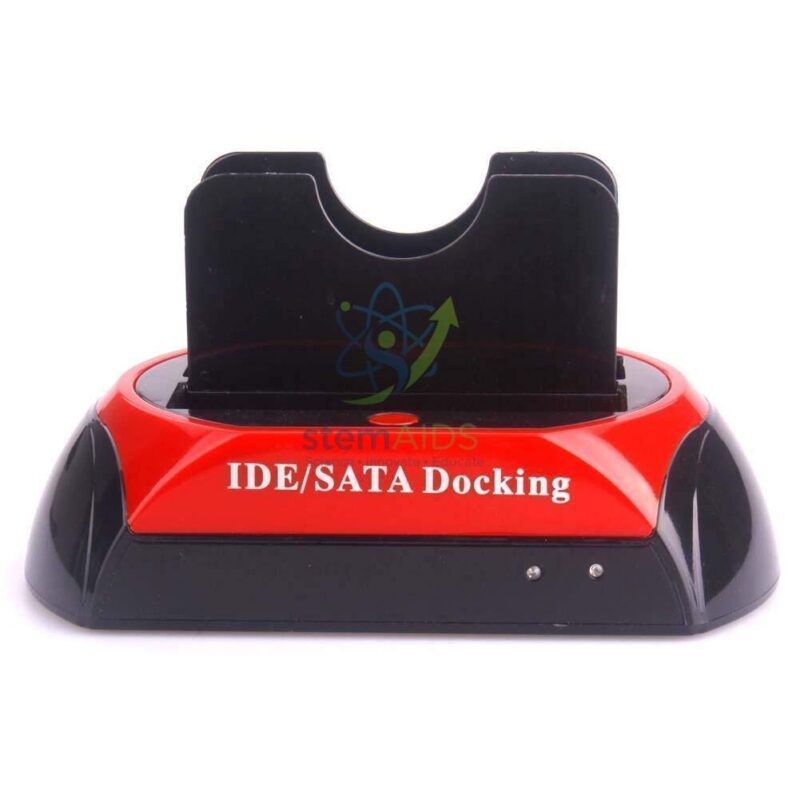
Quick Answer: A hard drive docking station is a desktop cradle that connects a bare internal hard drive or SSD to a computer without opening the computer case. The hard drive docking station in the listing photo is labelled IDE/SATA, meaning it has bays for both older IDE drives and SATA drives.
Drives In and Out Without a Screwdriver
Internal drives normally live inside a PC or laptop. A dock lets you stand the drive upright in a slot, where it meets the dock’s own power and data contacts, and the computer then sees it as an external drive. The photo shows a red and black unit with two top-loading slots and the words IDE/SATA Docking on its front.
SATA is the connector on modern desktop and laptop hard drives and on 2.5 inch SSDs. IDE, also called PATA, is the older standard that used wide ribbon cables. A dock with both kinds of bay is useful in IT departments and hardware teaching, where drives from old machines still need to be read, backed up or wiped. How the dock connects to the computer (for example USB) and which drive sizes each bay accepts should be confirmed at enquiry.
Handle bare drives by their edges and follow anti-static precautions. For moving small files day to day, a flash drive such as the USB 3.0 key is simpler; the dock is for whole drives.
Specifications
| Type | Hard drive docking station (desktop cradle) |
| Drive interfaces | IDE and SATA bays (label on pictured unit) |
| Loading | Top-loading slots (as pictured) |
| Use | Reading, copying, backing up or wiping bare drives |
| Computer connection and drive sizes | Confirm at enquiry |
Typical Jobs
- Recovering files from the drive of a failed PC
- Backing up or cloning a drive before an upgrade
- Wiping old drives with suitable software before disposal
- Computer hardware lessons on drive types, connectors and file systems
Care & Handling
- Eject the drive in the operating system, or power the dock off, before lifting a drive out.
- Do not move or knock the dock while a hard drive is spinning.
- Touch an earthed metal object or wear a wrist strap before handling bare drives.
- Push drives straight down into the slot; forcing one in at an angle bends the connector.
Why Choose LabEquip
IT departments, computer-hardware teachers and technicians who look after many machines buy docks to deal with loose drives quickly. LabEquip stocks the dock under General Lab Products; send your requirement, including the drive types you handle, through the contact page.
Frequently Asked Questions
What is the difference between IDE and SATA drives?
IDE, also called PATA, is the older standard with a wide pin connector and a separate power plug. SATA uses slim data and power connectors and is found on modern hard drives and SSDs. The pictured dock has a bay for each.
Can the dock read SSDs?
SATA SSDs use the same connector as SATA hard drives, so a SATA bay generally accepts them. NVMe and M.2 SSDs use different connectors and need a different adapter.
Do I need to install drivers?
Docks that connect by USB normally appear as an ordinary external drive on current operating systems. The drive must use a file system the computer can read.
Can I use both bays at once?
Many dual-bay docks allow this, and some offer offline copying from one drive to another. Check the features of the supplied unit before planning cloning work.
Is it safe to remove a drive while the computer is on?
Eject the drive in the operating system first and wait for any spinning drive to stop. Pulling a drive during a copy can corrupt its files.
Is the dock suitable for wiping school computers before disposal?
It gives easy access to the drive, but the wiping itself is done with dedicated software. Follow your organisation’s data protection rules and keep a record of which drives were wiped.
Last Updated: September 2026
You must be logged in to post a review.
Bestsellers




Reviews
There are no reviews yet.